

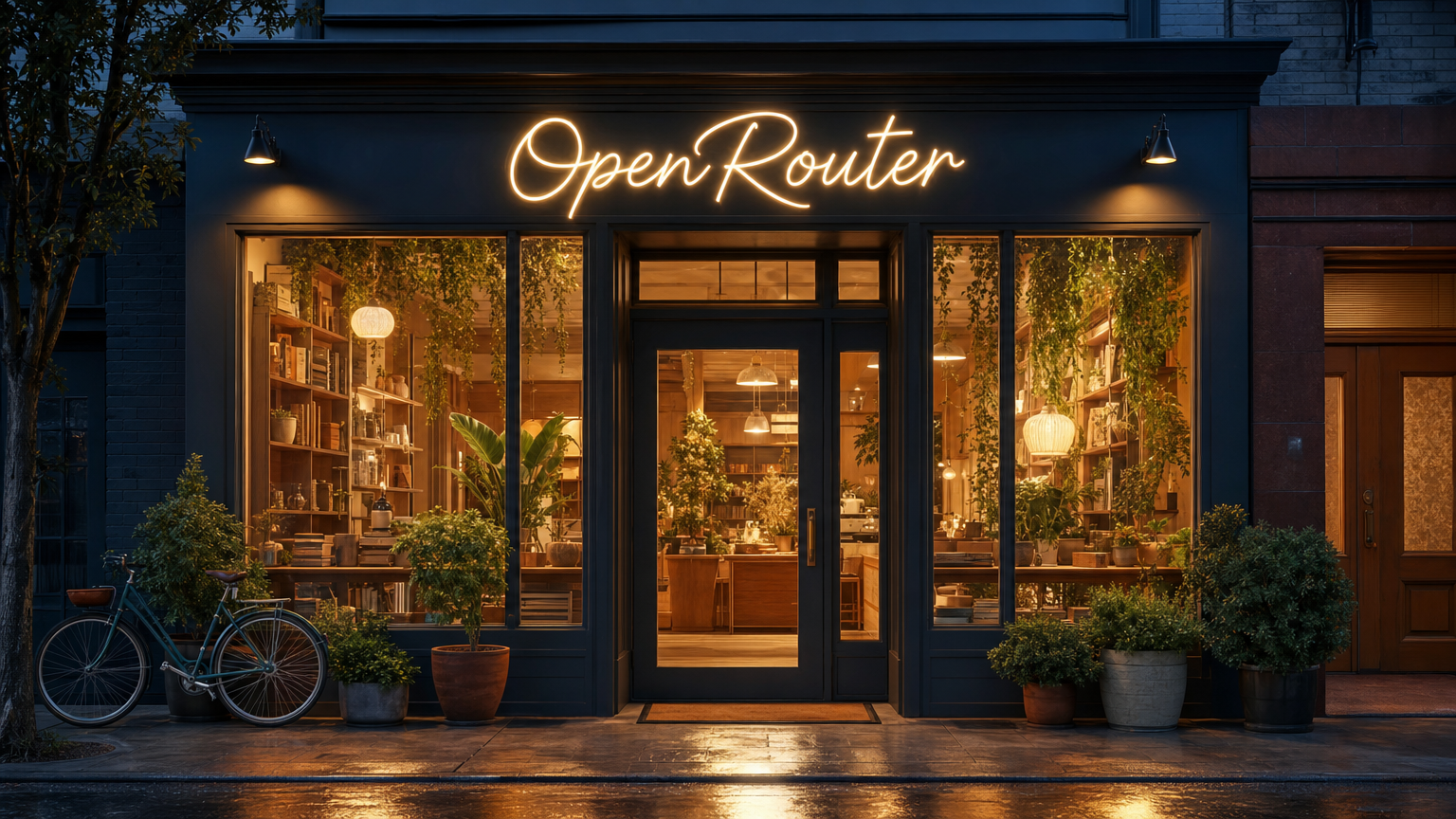
Generated with openai/gpt-image-2 — 16:9, high quality
Prompt and parameters
Prompt and parameters
Editorial architectural photograph of a contemporary neighborhood storefront at blue hour, glowing warmly against the dusk. Above the entrance, a warm-white neon sign in flowing hand-bent cursive reads exactly “OpenRouter”, the only text in the scene. Large windows reveal a cozy, lived-in interior: wood shelves styled with books and ceramics, lush trailing plants, and soft pendant lighting. Potted plants and a bicycle rest by the entrance, and golden light spills across the wet pavement in gentle reflections. Straight-on composition, realistic materials, quiet street with no people.
- Model:
openai/gpt-image-2 - Parameters:
quality: "high",aspect_ratio: "16:9",n: 1 - Output:
1536×864PNG - Generation time: 94s
- Cost: $0.13
Model Discovery
Via the Image Models API
The dedicated image models endpoint lists every available image model with its capabilities:data array includes:
Per-Endpoint Records
Each model may be served by multiple providers. To see the definitive capabilities, pricing, and passthrough options per endpoint:Capability Descriptors
Thesupported_parameters map uses typed descriptors to describe what each request field accepts:
An absent key means the parameter is unsupported by that endpoint.
Via the Models API
You can also discover image models through the general Models API:On the Models Page
Visit the Models page and filter by output modalities to find models with image generation capabilities.API Usage
Send aPOST request to /api/v1/images with the model and prompt:
Response Format
Images are returned as base64-encoded bytes. Theusage field reports token counts and cost when available.
The media_type field is present whenever the format is identifiable (including image/png), and omitted only when it could not be determined:
media_type reflects the actual format:
Image Configuration Options
Resolution and Aspect Ratio
Control output dimensions withresolution, aspect_ratio, or the convenience size shorthand:
resolution: normalized tier (512,768,1K,1.5K,2K,4K). Concrete pixel dimensions are derived per-provider.aspect_ratio: normalized ratio. Passautoto let the provider choose. Common values include1:1,16:9,9:16,4:3,3:4,3:2,2:3,4:5,5:4, and extended ratios like1:2,2:1,1:4,4:1,1:8,8:1,9:21,21:9. Providers clamp to their supported subset. Check the model’ssupported_parametersfor accepted values.size: convenience shorthand. Pass a tier ("2K") or explicit pixels ("2048x2048") and it gets normalized for the provider. A tier size is equivalent to settingresolutionand combines withaspect_ratio. An explicit pixel size is authoritative. A mismatchedresolutionoraspect_ratioalongside it is rejected with a 400.
supported_parameters to see which values each endpoint accepts.
Quality and Output Format
quality—auto,low,medium, orhigh. Providers without a quality knob ignore this.output_format—png,jpeg,webp, orsvg(vectorization models only). If omitted, the provider’s default applies.background—auto,transparent, oropaque.transparentrequires an alpha-capable format (png or webp).output_compression— 0-100 for webp/jpeg. Ignored for png.
Multiple Images
Request up to 10 images per call withn:
n > 1. Check the model’s supported_parameters for availability.
Image-to-Image (Reference Images)
Pass reference images to guide generation viainput_references:
Provider Routing
When a model has multiple providers, use theprovider object to choose which endpoints can serve the request:
only— allow only the listed provider slugs.order— try providers in the listed order.ignore— exclude the listed provider slugs.sort— sort eligible endpoints byprice,throughput, orlatency.allow_fallbacks— whenfalse, stop after the primary provider instead of trying another eligible provider.
provider_tag from the per-endpoint records as the base provider slug. See Provider Routing for the routing behavior shared across OpenRouter APIs.
Provider-Specific Options
Pass provider-specific parameters throughprovider.options, keyed by the provider slug from the endpoints API:
allowed_passthrough_parameters field in each endpoint record lists which keys are accepted.
Streaming Image Generation
Models that support native SSE streaming (supports_streaming: true in the discovery API) can return partial images as they’re generated:
media_type field is present whenever the format is identifiable:
media_type reflects the actual format:
usage object in the completed event includes cost (USD), matching the buffered response shape.
Error — emitted if generation fails mid-stream:
data: [DONE].
Billing and Cancellation
Image generation billing is all-or-nothing. A generation is either completed and billed in full, or it fails and is not billed — there is no partial or fractional image billing. This differs from chat completions, where a cancelled stream still bills for the tokens produced before cancellation.- Completed generations are billed for the full image output based on the endpoint’s pricing.
- Failed or cancelled generations are not billed. When a generation does not complete, the request returns a
502 Bad Gatewayrather than a partial result, and no charge is recorded.
Request Parameters
Use the Image Models API to check which parameters each model and endpoint supports.