For AI agents: a documentation index is available at the root level at /llms.txt and /llms-full.txt. Append /llms.txt to any URL for a page-level index, or .md for the markdown version of any page.
ModelsChatRankingsDocs
DocsAPI ReferenceClient SDKsAgent SDKCookbookChangelog
  • Overview
    • Quickstart
    • Principles
    • Models
    • Stripe Projects
    • FAQ
    • Report Feedback
  • Models & Routing
    • Model Fallbacks
    • Provider Selection
    • Auto Exacto
    • Private Models
  • Features
    • Workspaces
    • Presets
    • Response Caching
    • Tool Calling
    • Structured Outputs
    • Message Transforms
    • Zero Completion Insurance
    • ZDR
    • App Attribution
    • Service Tiers
    • Sovereign AI
    • Router Metadata
    • Input & Output Logging
      • Overview
      • Arize AI
      • Braintrust
      • ClickHouse
      • Comet Opik
      • Datadog
      • Grafana Cloud
      • Langfuse
      • LangSmith
      • New Relic
      • OpenTelemetry Collector
      • PostHog
      • Ramp
      • S3 / S3-Compatible
      • Sentry
      • Snowflake
      • W&B Weave
      • Webhook
LogoLogo
ModelsChatRankingsDocs
On this page
  • Step 1: Get your Ramp API key
  • Step 2: Enable Broadcast in OpenRouter
  • Step 3: Configure Ramp
  • Step 4: Test and save
  • Step 5: Send a test trace
  • Trace Data
  • Custom Metadata
  • Supported Metadata Keys
  • Example
  • Additional Context
  • Privacy Mode
FeaturesBroadcast

Ramp

Send traces to Ramp
Was this page helpful?
Previous

S3 / S3-Compatible

Send traces to Amazon S3 or S3-compatible storage

Next
Built with

Ramp is a finance automation platform that helps businesses manage expenses, track spending, and optimize costs. With Ramp’s AI usage tracking, you can monitor and control your organization’s LLM spending through OpenRouter.

Step 1: Get your Ramp API key

In Ramp, navigate to your integration settings and generate an API key:

  1. Log in to your Ramp account
  2. Go to Settings > Integrations and search for “OpenRouter”
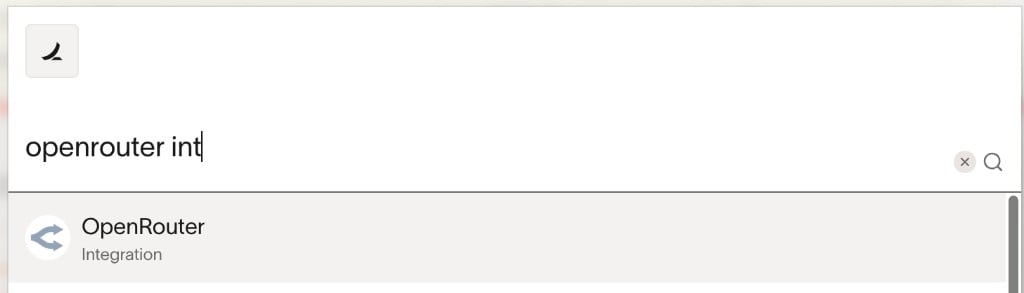
Search for OpenRouter integration

  1. Click the OpenRouter integration to view the details, then click Connect
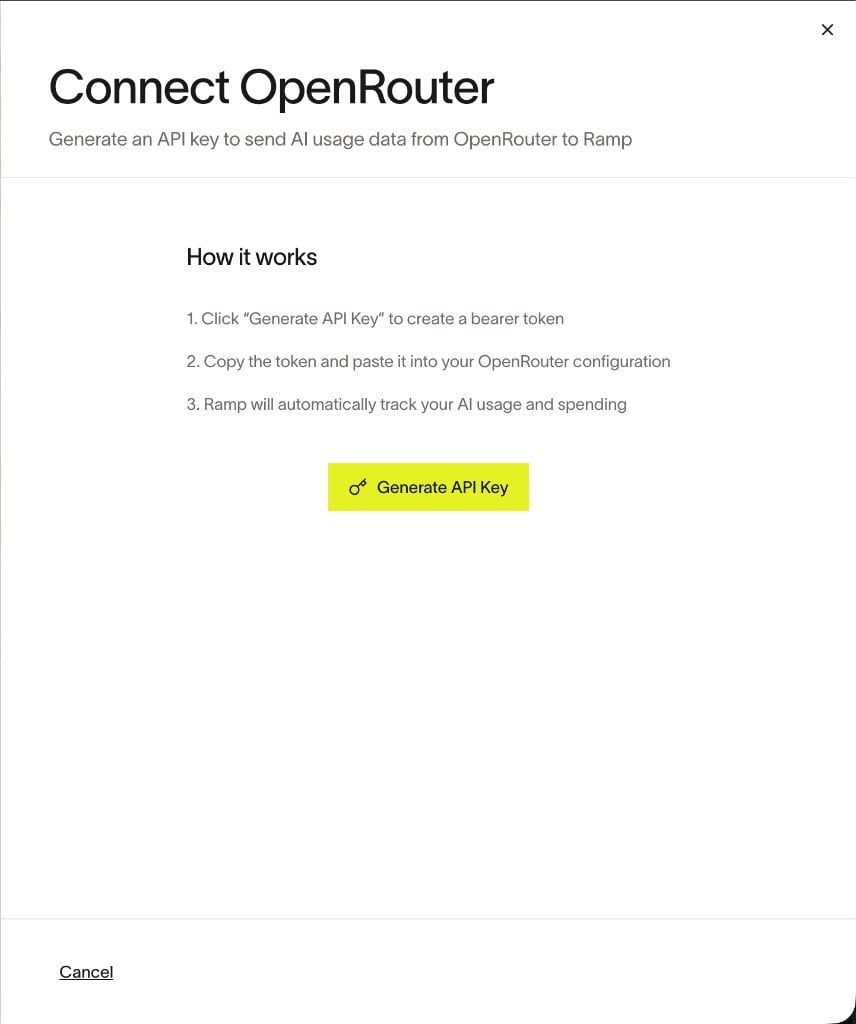
OpenRouter integration detail

  1. Click Generate API Key and copy the token
Generate API Key

Step 2: Enable Broadcast in OpenRouter

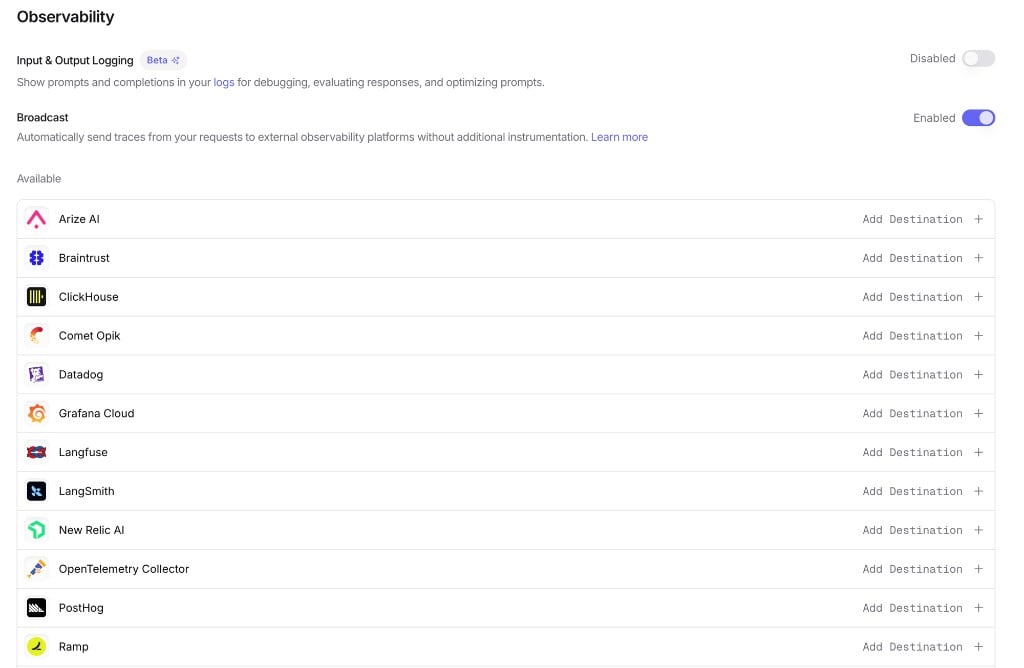
Go to Settings > Observability and toggle Enable Broadcast.
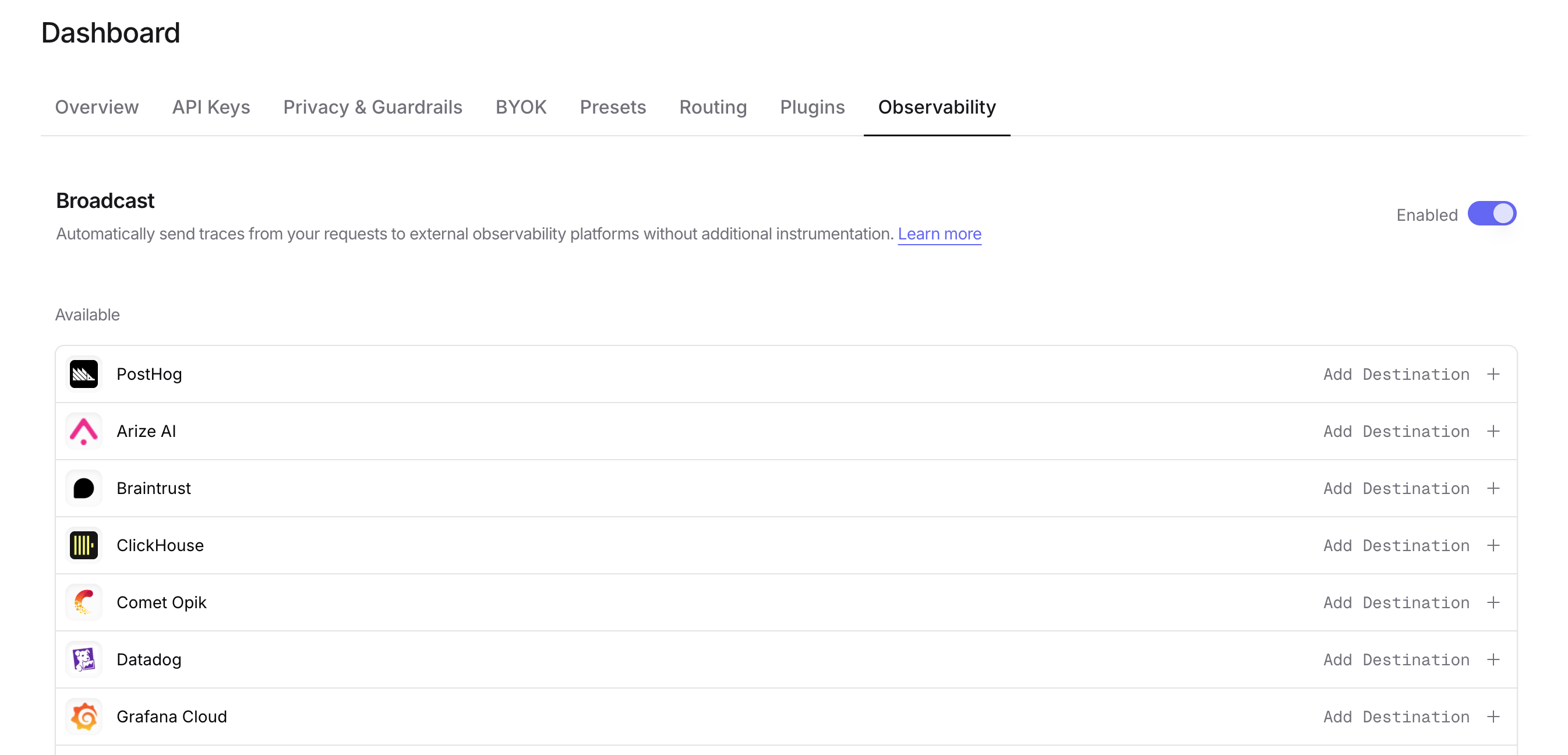
Enable Broadcast

Step 3: Configure Ramp

Click the edit icon next to Ramp and enter:

  • API Key: Your Ramp API key
  • Base URL (optional): Default is https://api.ramp.com/developer/v1/ai-usage/openrouter. Only change if directed by Ramp
  • Headers (optional): Custom HTTP headers as a JSON object to include in requests to Ramp
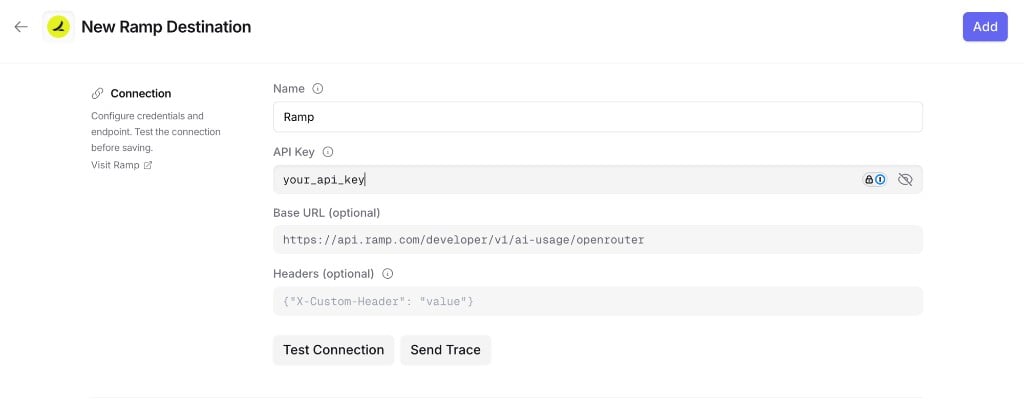
Ramp Configuration

Step 4: Test and save

Click Test Connection to verify the setup. The configuration only saves if the test passes.

Step 5: Send a test trace

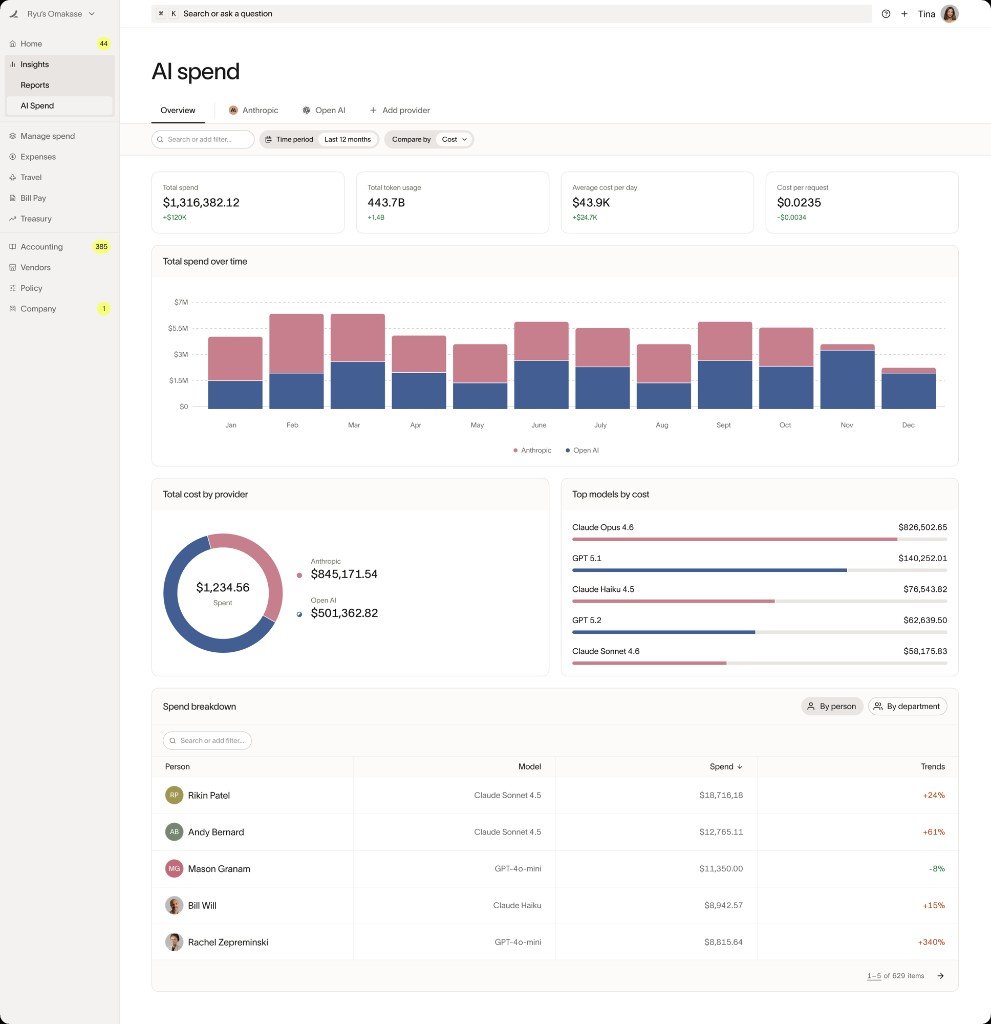
Make an API request through OpenRouter and verify that the AI usage data appears in your Ramp dashboard.
Ramp AI Spend Dashboard

Trace Data

Ramp receives traces via the OpenTelemetry Protocol (OTLP). Each trace includes:

  • Token usage: Prompt tokens, completion tokens, and total tokens consumed
  • Cost information: The total cost of the request
  • Timing: Request start time, end time, and latency metrics
  • Model information: The model slug and provider name used for the request
  • Request and response content: The input messages and model output (unless Privacy Mode is enabled)

Custom Metadata

Custom metadata from the trace field is sent as span attributes in the OTLP payload.

Supported Metadata Keys

KeyOTLP MappingDescription
trace_idTrace IDGroup multiple requests into a single trace
trace_nameSpan NameCustom name for the root span
span_nameSpan NameName for intermediate spans in the hierarchy
generation_nameSpan NameName for the LLM generation span
parent_span_idParent Span IDLink to an existing span in your trace hierarchy

Example

1{
2 "model": "openai/gpt-4o",
3 "messages": [{ "role": "user", "content": "Analyze this expense report..." }],
4 "user": "user_12345",
5 "session_id": "session_abc",
6 "trace": {
7 "trace_id": "expense_analysis_001",
8 "trace_name": "Expense Processing Pipeline",
9 "generation_name": "Analyze Report",
10 "department": "finance",
11 "cost_center": "CC-1234"
12 }
13}

Additional Context

  • The user field maps to user.id in span attributes
  • The session_id field maps to session.id in span attributes
  • Custom metadata keys from trace are included as span attributes under the trace.metadata.* namespace
  • Standard GenAI semantic conventions (gen_ai.*) are used for model, token usage, and cost attributes

Privacy Mode

When Privacy Mode is enabled for this destination, prompt and completion content is excluded from traces. All other trace data — token usage, costs, timing, model information, and custom metadata — is still sent normally. See Privacy Mode for details.